OpenVPCal Calibration Workflow & Operation Guide
1. Workflow Overview
| Step | Official OVC Notes | Additional Notes |
|---|---|---|
| Create Project | Open OpenVPCal and create a new project. Choose a folder to store the project file along with its associated and exported files. | |
| Set Up LED Wall | Use the “Add LED Wall” function to create the appropriate number of LED walls for each camera you want to calibrate. Use a clear, recognizable naming convention. In the “LED Settings” widget, configure the target wall parameters according to the LED wall’s specifications. | Custom gamuts can also be set here. |
| Export Calibration Patches | You can change the default settings in the “Patch Generation” section of the Project Settings widget. | If exporting as linear, the output is linear. If exporting as DPX or TIFF (for EXR: EXR is linear — assuming BT.2020 is selected, set the OCIO input to “Linear ITU-R BT.2020” and output to “ITU-R BT.2020 - ST 2084” in the ColorSpace config; the ST 2084 there acts as an OETF that cancels with the display’s EOTF, resulting in a linear signal on screen. If exporting TIFF or DPX, those formats already carry the OETF, so they should be sent to the screen directly without going through OCIO). |
| Load Calibration Patches into Media Player | Load the calibration patches into your media player and bypass any color transforms, since the patches are already in the target color space. If you’ve exported EXR, make sure to apply only the required EOTF transform. Ensure the patches play back correctly — no frame blending or looping. | |
| Set Up Camera | Position the camera in front of the wall. Make sure both the wall and the camera are warmed up (30 min) and at operating temperature. Turn off any external light sources that could affect the LED wall. | |
| Shoot the Patches | Follow the instructions on the first patch (the opening patch of the sequence). Shoot more than 1 frame per patch. Verify the camera is well exposed and aligned with the wall. Shoot RAW whenever possible. | |
| Pre-Process the Plate | OpenVPCal only accepts Linear EXR as input. Pre-process your camera plate to Linear/AP0 (ACES 2065-1) or Linear/Camera Native. We recommend Linear/AP0 (the tool’s default). | This means the processing needs to happen in an external application. |
| Load EXR Sequence | In OpenVPCal, right-click on the LED WALL and select “Load Plate Sequence.” Navigate to the folder containing the pre-processed camera plate. | |
| Check ROI and Patch Separation | OpenVPCal automatically detects the gaps between frames and the ROI within the plate. Verify that the ROI is correct, and use the frame navigation buttons to confirm that the frame intervals are accurate. | |
| Plate Settings | In the “Plate Settings” widget, configure the plate settings and select any additional calibration options you need. | |
| Analyze | Click “Analyze” to let the tool perform a precise analysis of your patches and determine the state of the wall. The tool will recommend whether the wall needs calibration and suggest calibration settings. You can analyze multiple LED walls simultaneously. | |
| Review Status and Calibration Settings | If the analysis succeeds, check the patch samples in the viewer to ensure each frame is aligned (outer = reference, inner = plate). Review the analysis plots to confirm the recommended calibration settings match your expectations. If the analysis fails, reshoot the plate following the suggested corrections. | |
| Calibrate | If you’re happy to proceed, click “Calibrate.” You can change calibration settings at any time and click “Calibrate” again. You can calibrate multiple walls simultaneously. | |
| Check Calibration | Review the calibration results by enabling “Preview Calibration” in the viewer. You should see a noticeable improvement! | |
| Export | If you’re satisfied, click the “Export” button to export your calibration transform. |
2. UI Breakdown
2.1. LED Settings Panel
This panel is used to configure the current state of the LED wall, including gamut, EOTF, and peak luminance.
2.1.1. LED Target Settings

- TARGET GAMUT: Select the target gamut for calibration. You can choose from predefined standard gamuts such as sRGB, P3, and Rec.2020.
- ADD CUSTOM GAMUT: Clicking this button opens a window where you can define a new custom gamut by entering a name and its CIE 1931 x,y primary and white point coordinates for use in calibration.
- TARGET EOTF: Select the target EOTF for the LED panel.
- TARGET MaxLum (nits): Sets the peak luminance of the content — only available when the EOTF is ST2084.
- (In Add Custom Gamut) CUSTOM NAME: Defines the name for the custom target color space.
- (In Add Custom Gamut) TARGET GAMUT CHROMATICITY COORDINATES: View or modify the xy gamut primaries and white point coordinates.

2.1.2. Tool Settings
- NUMBER OF GREY PATCHES: Sets the number of grey steps to generate / analyze. Default is 33.
- PRIMARIES SATURATION: Sets the saturation intensity for the color primaries. Default is 0.7.
2.2. Test Pattern Settings
This section is used to configure metadata about the test pattern. It won’t be enabled until after shooting is complete and the images have been imported.
2.3. Plate Settings

2.3.1. Plate Settings
- INPUT PLATE GAMUT: The input color space for the pre-processed camera plate sequence. Default is ACES 2065-1. This refers to the color space of the image itself.
- NATIVE CAMERA GAMUT: The native color space of the camera used for the shoot. This is the camera’s original gamut at the time of shooting. Even though the plate has already been converted, OVC still wants to know this.
- AUTO WB SOURCE: If enabled, the input plate will be auto-white-balanced before analysis and calibration. Strongly not recommended to enable.

2.3.2. Reference Settings
(In a complex shoot scenario with LED walls of different models or batches, you may need to match the calibration of one wall to another that is already calibrated or serves as a reference standard. By checking “Match Reference Wall” in the Reference Settings and selecting the corresponding reference wall from the dropdown, OpenVPCal will adjust the parameters of the wall being calibrated during the process, making its color output, luminance, and so on as consistent as possible with the reference wall. This allows for coordinated matching across multiple walls, ensuring visual consistency throughout the shoot.)
- MATCH REFERENCE WALL: If checked, the selected LED wall will be matched to the chosen reference wall.
- REFERENCE WALL: Lists the available reference walls that can be used for matching.
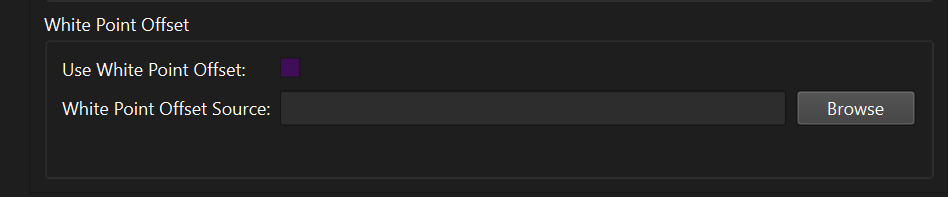
2.3.3. White Point Offset
Upload an EXR image so that OpenVPCal can calibrate against that white point reference.
- USE WHITE POINT OFFSET: If checked, the plate’s original white point will be shifted toward the measured white point of the specified file before analysis and calibration.
- WHITE POINT OFFSET SOURCE FILE: Path to the file containing the white point offset source.
3. Detailed Workflow (following the order in the overview)
3.1. Setting Up Test Content
3.1.1. Create a Project
When you launch the application, a dialog will automatically pop up asking whether you want to create a new project or load an existing one. You can also click “New Project” after a project is already open.
3.1.2. Set Up the LED Wall

You’ll need to add the appropriate number of walls based on your calibration requirements. The concept of a “wall” depends on your specific use case — it might represent a combination of different cameras with the same physical LED panel, or different calibration passes.
My recommendation is to name them in the format “LEDName_CameraName,” which makes it clear this is a calibration for a specific LED-camera combination. When there are multiple cameras in the scene, you can duplicate entries to create multiple LED wall + camera combinations.
3.1.3. Export Calibration Patches


Before exporting, make sure the LED settings in OpenVPCal are correct, because the color values in the calibration patches need to be properly encoded. You can configure the patch file format, resolution, and number of frames per patch in the “Patch Generation” tab of the Project Settings widget. For example, when using Unreal Engine’s media player, exporting as linear EXR is generally more convenient; for systems like Disguise or Plate Performer, exporting display-referred patches as DPX may be more appropriate.
If EXR is selected as the file format, the generated patches will bypass the EOTF (exported as linear), with a scale of 1 = 100 nits (meaning a value of 1 in the image represents 100 nits of brightness), encoded in the target color space.
3.1.4. Load Calibration Patches into the Media Player
Upon export, OpenVPCal also generates a Pre_Calibration_OpenVPCal.ocio config file, which provides the necessary transforms to be applied to the patches — this is especially important when exporting EXR.
The Pre_Calibration_OpenVPCal.ocio config provides three transforms (to be used as output transforms):
- First option: EOTF transform only
- Second option: EOTF + gamut transform
- Third option: Gamut transform only (choose this for the EXR + UE playback workflow)
For the nDisplay output, configure it as follows: set the input to WorkingColorSpace (UE), which means no color transform is applied to the colors inside UE. (That said, it’s recommended to change UE’s working color space to BT.2020, so internal processing uses a richer color range. If you’ve selected Rec.2020 as the color space, your input can also be “Linear ITU-R2020.” Ideally, you’d pick ACES AP1 / ACEScg here, but that might cause issues with…)

This is a standard OCIO setup for shooting test patches.
Unreal Post-Processing Settings:
(Refer to the exported Word document — advanced macros are not supported in Tencent Docs display.)
3.1.5. Camera Setup
Camera setup details (to be filled in later).
3.2. Calibration
3.2.1. Pre-Process the Test Plate

Pre-process via DaVinci Resolve.
3.2.2. Load the EXR Sequence

In OpenVPCal’s “Stage View” > “LED Wall” panel, right-click the LED wall you want to load the plate for and select “Load Plate Sequence,” or go to “File” > “Load Plate Sequence,” to load the calibration test plate corresponding to that wall.
OpenVPCal will automatically recognize the test plate and attempt to determine the region of interest (ROI) for analysis as well as the gaps between patches. If auto-detection fails, you can manually align the red ROI rectangle in the viewer using the center square of the first patch as a reference.
3.2.3. Plate Settings

- Input Plate Gamut: This must always be a linear space (e.g., ACES 2065-1).
- Native Camera Gamut: For example, ARRI Wide Gamut or Sony SGamut.
- Auto White Balance: Not recommended. Enabling this applies automatic white balance to the image, which defeats the purpose of white balance calibration. (If your workflow requires auto white balance on the plate and you can’t do it in-camera, or if you need more precise white balance, then go ahead and select the Auto WB Source.)
3.2.4. Analyze
After loading and setting up the plates for each LED wall you intend to analyze and calibrate, click “Analyze” in the Execute tab.
The analysis operation extracts the necessary information from the plate and switches the software to “Analysis Layout.” You can select multiple walls and run the analysis simultaneously. (Note: any wall that uses another wall as a reference must be analyzed and calibrated at the same time as that reference wall.)
When the analysis completes, the tool displays a popup window summarizing the results for each analyzed wall. The analysis may report critical errors, warnings, or indicate that the wall does not require calibration (because it falls within acceptable tolerance).
3.2.4.1. Sample Analysis Viewer
In the analysis layout, a patch analysis viewer appears, giving you an overview of the wall’s state and its calibration. The viewer is powered by OpenColorIO (OCIO), so patches can be mapped to any color space available in the default OCIO config bundled with the tool — ACES 1.3 Studio Config.
The viewer renders each patch in the calibration sequence as a square swatch: the outer area shows the target color, and the inner area shows the actual color as captured by the camera.
- Correct example:

- Example of a capture error:

- Note that the red, green, and blue positions are swapped.
What each control does:
- Exposure slider: Adjusts the exposure level of the image in the patch analysis viewer.
- Display and view drop-down menus: “Display” selects which screen to view on. “View” selects what type of data to display.
- Auto white balance preview: Lets you preview how the auto white balance algorithm would adjust the patch colors before committing.
- Calibration preview: Shows the expected result of applying calibration to the patches.
3.2.4.2. Analysis Widgets


- Max Distance Analysis: Shows the extent of out-of-gamut colors relative to the calibration target color space, both before and after calibration.
- EOTF Analysis: Tracks the linear response of the LED wall, showing pre- and post-calibration data for the red, green, and blue channels.
- White Point Analysis: Displays the LED wall’s white point as observed by the camera, including the target white point, pre-calibration white point, post-calibration white point, and the white point from the Macbeth samples.
- Color Space Analysis: Shows the LED wall’s color space and white point range as observed by the camera, covering the target color space, pre-calibration color space, post-calibration color space, and Macbeth sample data.
The Macbeth Color Checker is a standard color reference chart produced by Gretag Macbeth, a brand under X-Rite. It consists of a series of patches with precisely defined colors and reflectance values, measured and standardized to serve as a color calibration reference, helping ensure color accuracy and consistency across different devices and environments.
3.2.4.3. IPT — Color Difference Analysis Widget

This widget uses the DeltaE metric to evaluate calibration accuracy. DeltaE is a metric that quantifies the perceptual difference between two colors. In this context, it measures the difference between the colors captured by the camera (before and after calibration) and the target colors. This analysis gives you a clear picture of how effectively the calibration process reduces color error. A smaller DeltaE value means the camera-captured colors are closer to the target, indicating more accurate calibration. The widget may display these DeltaE values in graphical or numerical form, helping you quickly assess how different color regions — or the entire color space — change before and after calibration. For example, it might show the DeltaE value for each individual patch before and after calibration, or provide an average DeltaE across the entire chart as an overall quality measure.
3.2.5. Calibration Settings

3.2.5.1. Calibration Options
The calibration settings offer a range of options supporting different calibration paths and features. The analysis process typically sets optimal parameters based on the condition of the LED wall, but you can also manually enable or disable options or choose a different path. The options are as follows:
- REFERENCE TO TARGET CAT: Select from a list of standard chromatic adaptation transforms.
- CALCULATIONS ORDER: Edit the operation order of the calibration transforms. Gamma calibration first, or color space calibration first.
- ENABLE EOTF CORRECTION: Check this to enable EOTF correction.
- TARGET TO SCREEN CAT: Select a chromatic adaptation transform from the standard list, or select “NONE” to use it as the calibration matrix. Default is “NONE.”
- ENABLE GAMUT COMPRESSION: Check this to enable gamut compression.
- AVOID CLIPPING: Check this to scale the entire calibration transform so highlight clipping is avoided (enabled by default).
Note: As of 2025-02-05, there is a bug in the OpenVPCal UI where the checked options may not be reliable — always verify against what’s actually written in the OCIO config file. If Gamut Compression is enabled, the transform in the config will include additional lines like these:

3.2.5.2. Calibration Order (Calculations Order)
- EOTF CORRECTION DISABLED:
- Calibration method: In this path, calibration is performed solely through a 3x3 matrix applied directly to the input RGB data that has been converted to the target color space.
- Assumption: This approach assumes the LED wall behaves linearly — meaning there is a simple linear relationship between the input signal and the wall’s luminance and color output throughout the image processing pipeline. No EOTF correction is needed.
- 1D → 3x3:
- Calibration method: During calibration, EOTF correction and RGB balance are measured first, then the 3x3 calibration matrix is applied.
- Assumption: This path assumes the LED wall is not linear, and that the non-linearity occurs at the end of the image processing chain. This means that after color mapping, the LED wall’s own characteristics introduce non-linear luminance or color output, so EOTF correction and RGB balance adjustments need to happen before the 3x3 matrix calibration.
- 3x3 → 1D:
- Calibration method: The reverse of 1D → 3x3 — the 3x3 calibration matrix is applied first, then EOTF correction and RGB balance are measured.
- Assumption: Also assumes the LED wall is non-linear, but here the non-linearity is assumed to occur at the beginning of the image processing chain (before or during pipeline color mapping, before the EOTF). That is, the non-linearity already exists at the early color mapping stage (the UE rendering stage), so the 3x3 matrix is used first to do a preliminary color space correction, followed by EOTF correction and RGB balance.
- Which one to choose:
- The correct choice depends on where the non-linearity occurs in your specific image processing pipeline. Different LED wall hardware, image processing software, and hardware configurations can cause non-linearity at different stages.
- When the analysis determines that the LED wall is not linear, OpenVPCal defaults to the 1D > 3x3 order. This is because in most common situations, the LED wall’s non-linearity is more likely to occur at the end of the processing chain, making this order the more commonly applicable choice.
3.2.5.3. Chromatic Adaptation Transform
A chromatic adaptation transform (CAT) is a mathematical transform that simulates the human visual system’s ability to adjust color perception under different lighting conditions. In color management and calibration, CAT becomes especially important when converting colors between different illuminants or color spaces.
For example, when converting from a color space with a specific white point (such as daylight) to one with a different white point (such as tungsten lighting), a CAT ensures that colors remain visually consistent — even though the illuminant has changed, a human observer should perceive roughly the same colors.
In OpenVPCal, CAT is used throughout the calibration process to help map colors accurately between different reference standards and target color spaces. In the Calibration Settings widget, users can select an appropriate transform from the standard CAT list — for example, the “Bradford” transform, which is one of the most widely used CAT algorithms. Different CAT algorithms may perform better in different scenarios, so choosing the right one helps improve the accuracy of color calibration.
- Reference to Target: Here, “Reference” refers to the test plate’s ACES 2065-1 space, and “Target” refers to the target gamut of the screen.
- Target to Screen:

- Adjusts the test plate’s original white point to match the target screen’s white point. As a result, the calibration output will not change the screen’s white point.
3.2.5.4. Avoid Clipping
The calibration process may push one or two RGB channels above the expected peak luminance. When targeting the ST2084 EOTF, if any channel exceeds that value, the display will clip it, which affects the LED wall’s white point. The “Avoid Clipping” feature scales those channels back down below the peak luminance threshold. This may have a slight effect on the overall brightness of the LED wall, but the impact should be fairly minor.
3.2.5.5. Calibration Matrix

Once calibration is complete, this widget provides options to copy each 3x3 matrix used in the calibration transform in several useful formats.
3.3. Transform Breakdown
3.3.1. Detailed Breakdown of the OCIO Transforms
1 | 1- !<ColorSpace> |
This section contains the description and metadata. For the final confirmation of all settings, always trust this block rather than the UI. It’s located around line 1150. The calculation_order field here determines the order of the two main transforms below.
1 | 1from_scene_reference: !<GroupTransform> |
The two main transforms are: MatrixTransform for gamut conversion, and the GroupTransform children for gamma calibration.
- The first transform —
!<MatrixTransform> {matrix: [1.49040952046417, -0.2661709192612, -0.224238601333507, 0, -0.080167499789956, 1.18216712107567, -0.101999621238164, 0, 0.00322763118916624, -0.0347764757444135, 1.03154884460315, 0, 0, 0, 0, 1]}— is the ACES AP0 -> BT.2020 gamut conversion. I’m confident about this because I verified it by calculating it myself: . In the OpenVPCal UI, this corresponds to
  the Reference To Target Matrix. So “Reference” refers to ACES AP0, and “Target” refers to the “target gamut” (BT.2020 in this case).
 - The second transform is:
 the Target To Screen Matrix. This is presumably the transform that corrects for the screen’s color cast relative to BT.2020 — i.e., X * matrix = the color cast correction to BT.2020.
 - The children transforms below: EOTF calibration using a 1D LUT, applied separately to the R, G, and B channels.
1 | 1 // The following is added if Gamut Compression is enabled |
Gamut compression. See the ACES Gamut Compression and User Guide for details.
1 | 1!<MatrixTransform> {matrix: [1.49040952046417, -0.2661709192612, -0.224238601333507, 0, -0.080167499789956, 1.18216712107567, -0.101999621238164, 0, 0.00322763118916624, -0.0347764757444135, 1.03154884460315, 0, 0, 0, 0, 1], direction: inverse} |
This is the inverse of the first gamut conversion matrix from the two main transforms above.
3.3.2. Alternative if OCIO Is Not Available
In the same directory as the output OCIO config, there is a LUT CUBE file.
This file combines the matrix transforms and the 1D LUT. It can be used in environments that don’t support OCIO, such as Disguise. It should be applied at the very end of the image processing pipeline, just before the signal is sent to the LED wall.
3.3.3. Two Post-Calibration Transforms
After calibration is complete, there are two calibrated transforms available — one in Desired Color Spaces and one in Desired Display-Views:
Desired Color Spaces:
Use WorkingColorSpace + this for the output to screen:
Desired Display-Views:
Use WorkingColorSpace + this for the output to screen:
The second option (Display-Views) is clearly the correct one. Looking at the code, the Color Spaces option actually contains one extra transform on top of what Display-Views does. After completing the ColorSpace and linear calibration, the original transform converts back to AP0 — and this one tacks on an additional step to convert to CIE-XYZ. That’s likely used for generating chromaticity diagrams.
3.3.4. How Gamut Compression Parameters Are Calculated
This code lives in the colourspace_max_distances function inside src/open_vp_cal/core/calibrate.py.
1 | 1def colourspace_max_distances(source_cs, destination_cs, cat, shadow_rolloff): |
The impact of these values is discussed around the 13:54 mark in the video — it relates to the ACES Parametric Gamut in the ACES standard color transforms.
The purpose is to prevent color overflow (clipping) after gamut conversion. Specifically, if the colors “exceed the LED wall’s display capability” but fall within the camera’s capture range, the camera will see color clipping. This is addressed by compressing the color space by roughly 10%.
Parameter example:
1 | 1- !<BuiltinTransform> {style: ACEScg_to_ACES2065-1} |